


Did you know that you can run the latest large language models (LLMs) locally on your laptop? This means you are no longer dependent on cloud services, and you get privacy while working with the AI model of your choice at your convenience.
Running LLMs on your own computer is no longer limited to researchers and developers. Thanks to technology, there is a sea of accessible tools that make it possible to download and operate powerful AI models locally, without the need for cloud platforms or external APIs. Also, this approach endows some unique advantages, such as greater privacy, offline access, and most importantly, control over how models are used.

If you are wondering how to run LLMs on your laptop, here is a quick explainer.
What does it mean to run an LLM locally?
For starters, a local LLM setup means that the model runs entirely on your own machine, be it desktop or laptop, instead of remote servers. This also eliminates the need to send data to third-party services. The key advantages of this method are privacy-first usage, as no data leaves your system; offline functionality, as the on-device model can be used even without internet access; and greater scope for customisation, offering flexibility in choosing models and modifying outputs.
If you’re wondering why users are increasingly running LLMs locally, there are multiple reasons. Data privacy is paramount as sensitive inputs such as personal notes, proprietary documents or research data remain on device. Another big driver is cost efficiency. This is mainly because there are no API usage fees and subscription costs after initial setup. Moreover, users are at liberty to choose different models based on performance, size, or use cases. Another advantage is experimentation, as developers and researchers can text models freely without any restrictions imposed by host platforms.
LLMs can be run locally using two free tools, Ollama and LM Studio, designed to help run these models on a user’s laptop.
Using Ollama
Ollama is perhaps the easiest way to run an LLM locally. It is a tool designed to help users access local AI that feels just like chat-based interfaces. Ollama can be installed on macOS, Windows, or Linux. Once installed, launch the application and download the preferred model. Following the installation, you can start interacting through a chat interface. The process is fairly simple, as once installed you can browse available models, download them via a simple command, and start using them right away. The interface of the tool resembles popular AI chat tools like ChatGPT, Claude, Gemini, etc., making it easy for beginners to adopt.
Story continues below this ad
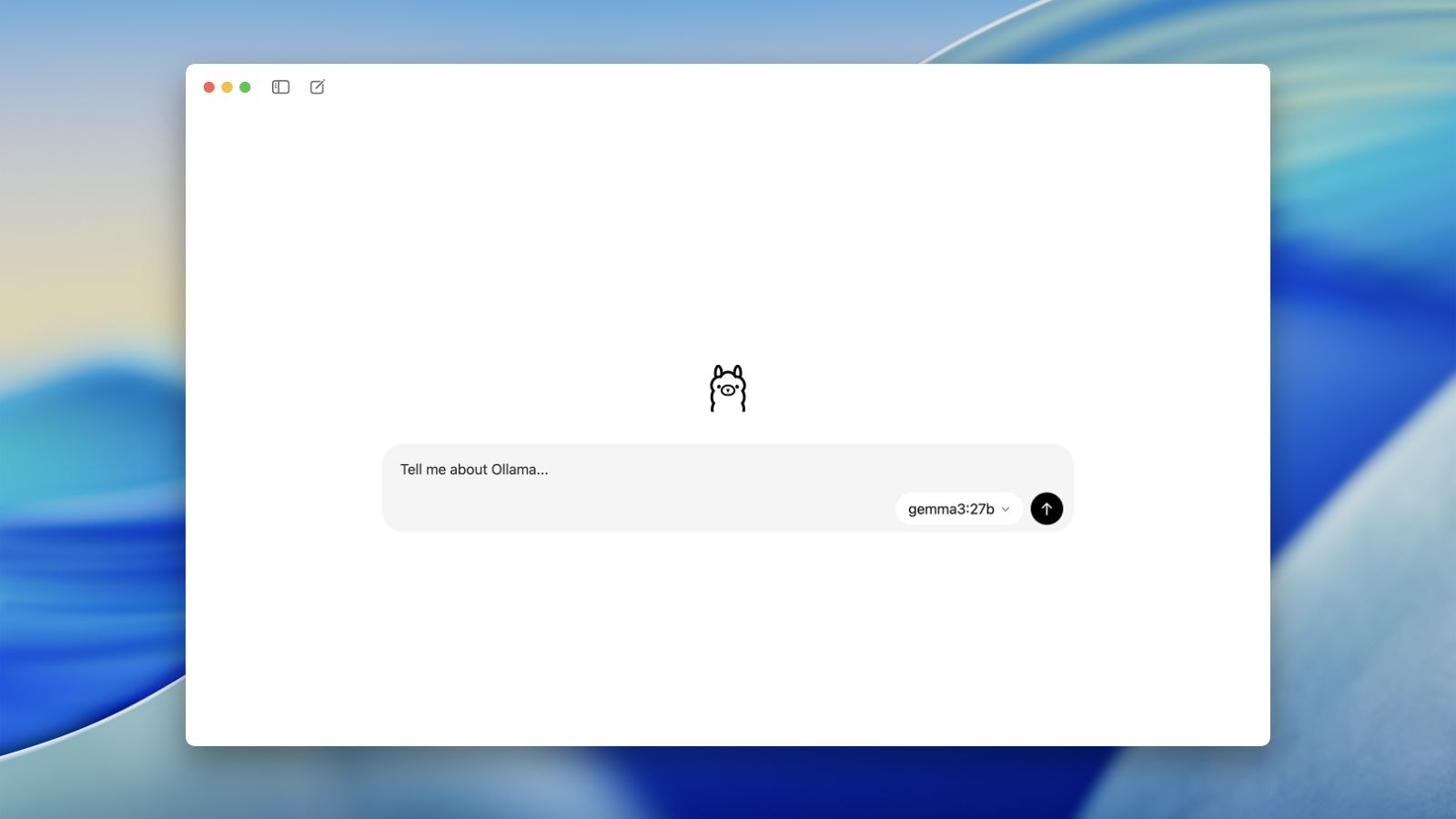 Ollama interface on Mac.
When it comes to model selection, Ollama offers access to multiple models with different capabilities. Users can select pre-listed models, run commands to download them, and switch between models during use. It needs to be noted that model size varies, as some can be over 10 GB, making RAM and system storage imperative. Also, response speeds are heavily dependent on CPU/GPU availability, RAM size, and model size.
Using LLM via LM Studio
In simple words, LM Studio is a desktop application that helps users to find, download, and run open-weight LLMs locally on computers. Much like Ollama, it provides a user-friendly interface to chat with models entirely offline and support AI models in various formats. However, LM Studio is slightly more advanced than Ollama. While Ollama comes with a chat-first design, LM Studio closely resembles an integrated development environment (IDE) or platform that offers a comprehensive set of features for software development. When compared to Ollama, LM Studio offers more detailed controls, model management tools, and performance insights.
New in LM Studio 0.3.27 💬🔍
Find in current chat, and search all of your chats!
⌘/Ctrl + F
⌘/Ctrl + Shift + F pic.twitter.com/itWKgzIYbN— LM Studio (@lmstudio) September 25, 2025
https://platform.twitter.com/widgets.js
When it comes to set up, users need to install LM Studio and launch the application. Then, they can download a model which is prompted on the first run. After loading it, they can begin interacting with the AI model. Among key features, LM Studio displays token usage, shows response generation time, and gives insight into how the model processes queries. Its advanced features make it particularly useful for users who want a deeper understanding of model behaviour.
But what about hardware requirements?
Perhaps the most asked question is what kind of configuration one should have to run LLMs on their laptops. Users need to be cognisant that running these models locally is resource-intensive, meaning they need adequate RAM and storage space to function efficiently. Typical requirements would include a minimum of 8GB RAM, although multiple developers and redditors recommend 16GB+.
When it comes to storage, running LLMs on a laptop would require at least 50 GB to 100 GB+ of free space on a fast NVMe SSD. Though some models work well on laptops with 512GB storage, 1TB+ is highly recommended for running multiple models such as Llama 3, Mistral, and Qwen 3.5. Here the storage on your laptop acts as a repository for model files which could likely range from 4 GB to 20 GB+. While a GPU is the backbone for most AI architectures, it is optional when running on laptops. Though GPUs can be helpful as they significantly improve speed, smaller models can still run on lower-end systems but with slower response times.
Story continues below this ad
Local LLMs afford flexibility, but they are not without trade-offs. When it comes to limitations, there would be likely performance constraints when compared with cloud-based models. Other limitations include large download sizes; advanced configurations may run into setup complexity, and they offer limited access to cutting-edge proprietary models.
The big picture
The trend of relying on LLMs run locally signals a shift in AI, as more and more users are moving away from centralised platforms to more distributed, user-controlled systems. It is in tune with the growing concerns around data privacy, surveillance, and dependency on big tech providers. With AI tools improving at a rapid pace and hardware becoming more advanced, local AI could likely have more takers. This shift is tangible, as running a local LLM is now more accessible, practical, and increasingly relevant. Tools mentioned above such as Ollama and LM Studio are simplifying this process, allowing more beginners to follow suit. Be it for development, research, or personal use, local models seem to be offering a viable alternative to cloud-based AI, particularly for those who prioritise privacy and autonomy over advanced features.
Caveat: Not all LLMs that can be run locally are open-source, even though most of them are. Models like Qwen, Mistral, and Llama 3 allow local and private use; many others come with ‘open weights’, meaning their weights can be downloaded for free, but other aspects such as training data or code are not provided. Also, some models limit commercial usage even though they can be run locally.

